


Try the native option first
Open Backgrounds and effects → Appearance. Portrait touch-up or Makeup may already solve the task without another installation, depending on your account.
Quick answer
Google Meet now includes Portrait touch-up with Subtle and Smooth options, plus AI-powered Makeup on eligible editions. Use CiCi Cam when you want separate skin, makeup, face-shape, lighting, and color controls or one saved look across Meet and other compatible apps. It works as a desktop virtual camera, not a browser extension.
Windows 10/11 · macOS 14+ on Apple Silicon · Browser permissions and account features can vary
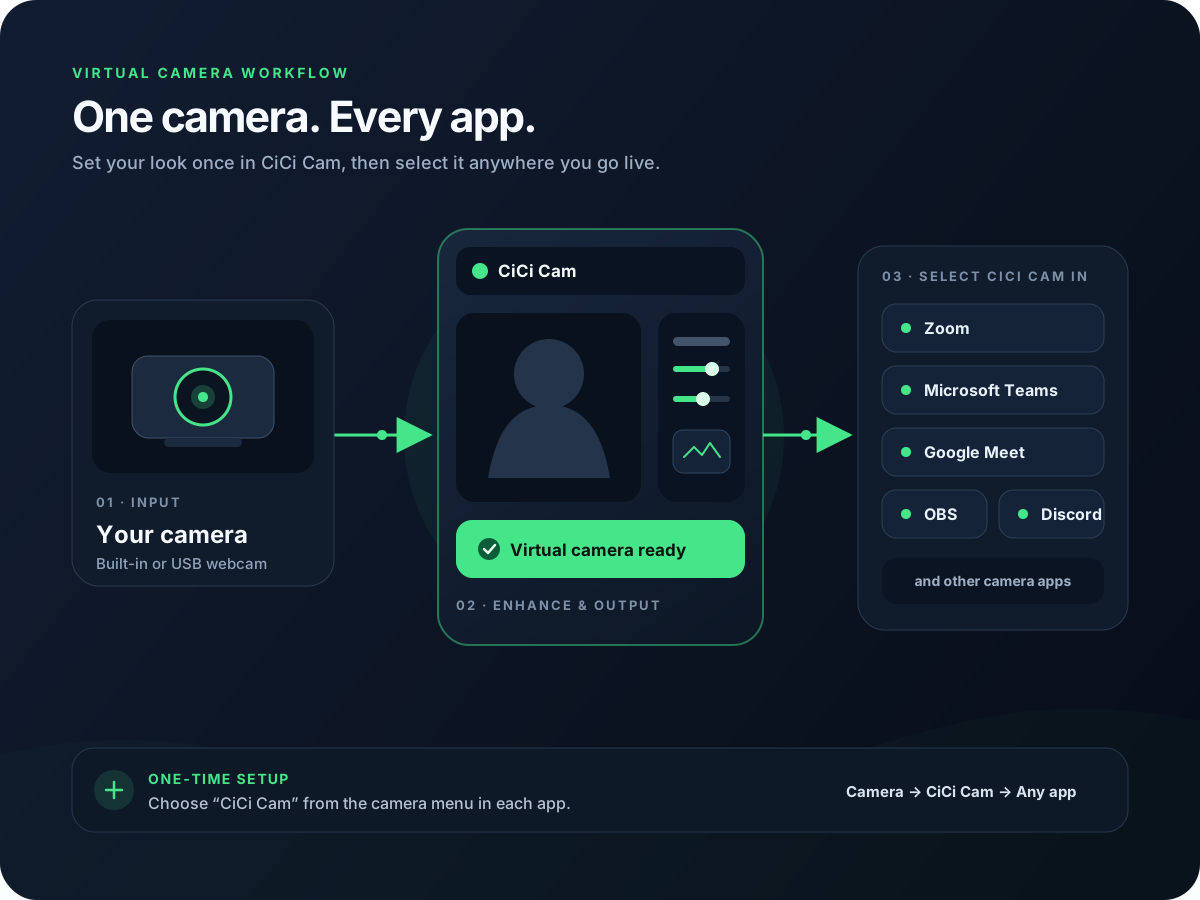
Choose your webcam and set your filters or beauty effects in CiCi Cam, then select CiCi Cam as the camera in Google Meet. Keep CiCi Cam open so it can send the processed video to Meet. You do not need a browser extension. If you prefer Meet's built-in tools, check Backgrounds and effects → Appearance; Portrait touch-up and Makeup depend on account eligibility.
Last reviewed:
Install CiCi Cam on a supported Windows or Mac computer and select your physical webcam. Start with light skin smoothing and facial lighting, then adjust makeup, face shape, or a color filter. Keep the live CiCi Cam preview running.
Open meet.google.com and allow camera access. On Windows or macOS, also confirm that the browser is allowed to use camera devices in the operating-system privacy settings. CiCi Cam needs access to your physical webcam too.
Before joining, use the camera dropdown below your preview. You can also open More options → Settings → Video → Camera and select CiCi Cam. Selecting the physical webcam instead bypasses the filters you configured in CiCi Cam.
Check facial detail, color, and movement in Google Meet's own preview. Reduce overlapping Portrait touch-up, Makeup, or lighting effects under Backgrounds and effects → Appearance. Leave CiCi Cam running for the meeting and make further filter adjustments there.
Setup visuals and product previews
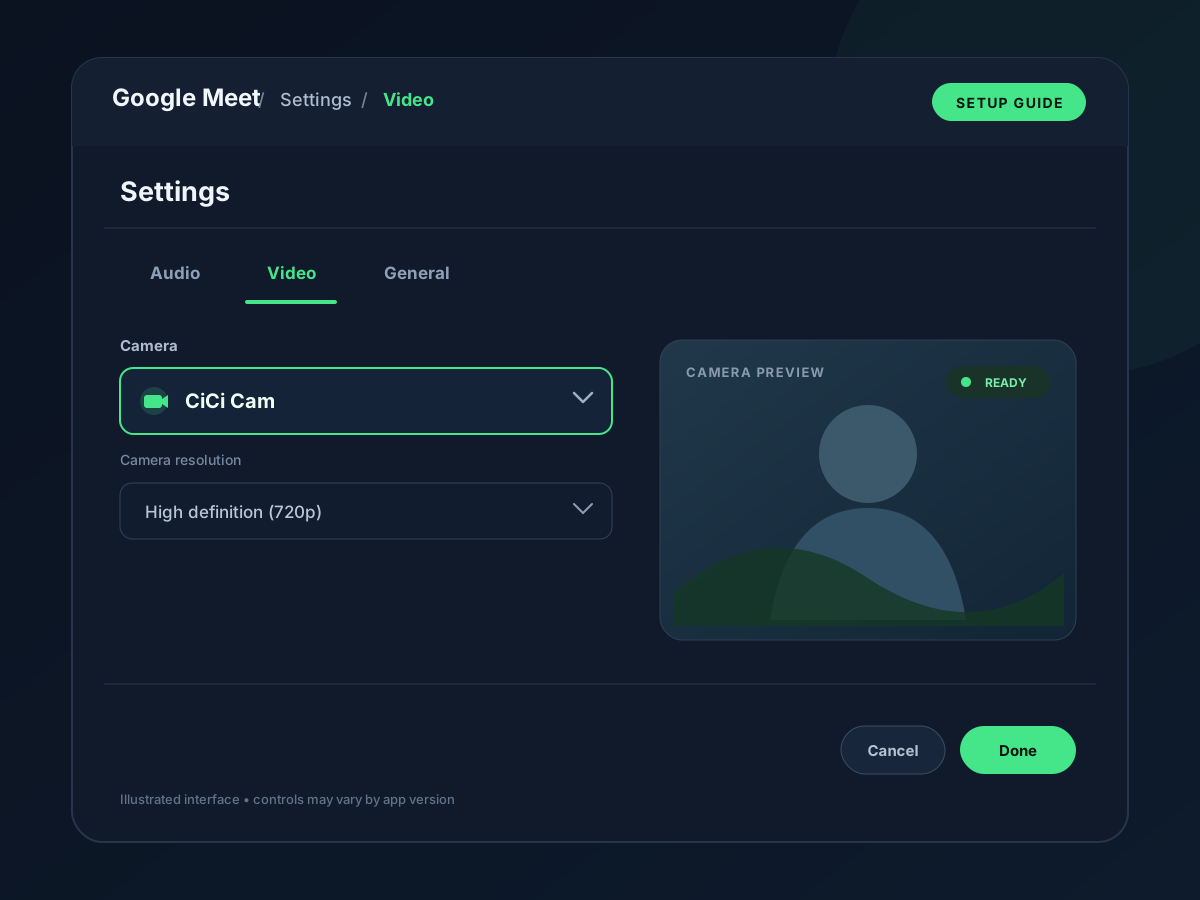
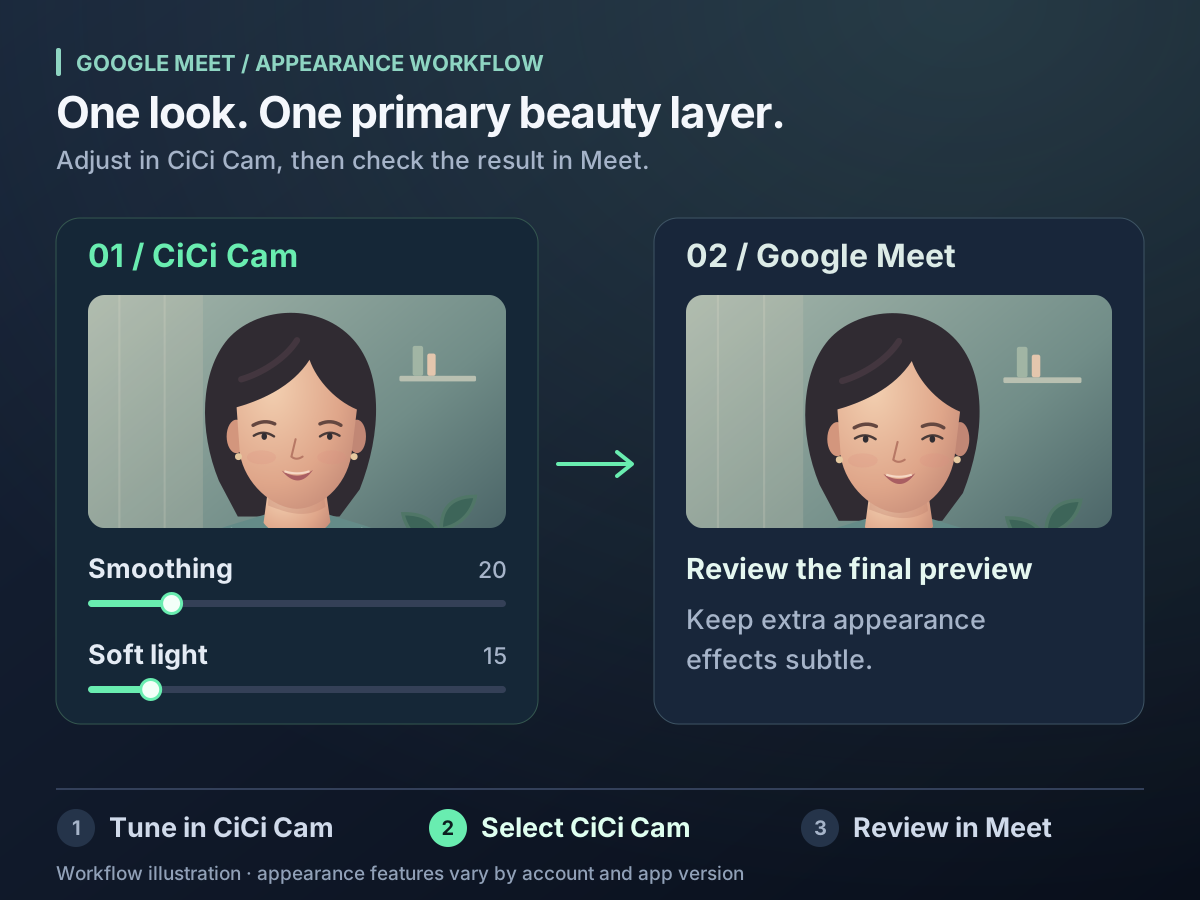
Portrait touch-up and Makeup are useful, but availability depends on the Google or Workspace edition, client, region, and administrator settings. Not every participant sees the same Appearance menu.
A browser extension modifies a browser-based workflow and has its own permissions and compatibility. A desktop virtual camera processes the feed before Meet and can be selected by other compatible camera apps.
Meet needs site permission, the browser needs operating-system camera permission, and the correct camera must be selected. Missing any one of these can hide a physical or virtual camera.
Built-in filter, browser extension, or virtual camera? Compare where each option applies effects, what you can control, and whether the same look can work outside Meet.
| Approach | Where it runs | Best for | Main limitation |
|---|---|---|---|
| Google Meet Appearance | Inside Google Meet | Quick Portrait touch-up or Makeup with no extra installation when the feature is available | Availability varies by edition, client, region, and admin settings; the result stays in Meet |
| Browser extension | Inside a supported browser | Extension-specific effects for a browser workflow | Capabilities, permissions, compatibility, and maintenance depend on the extension publisher |
| CiCi Cam virtual camera | In a Windows or Mac desktop app before the feed reaches Meet | Separate skin, makeup, face-shape, lighting, and color controls with reusable presets | Requires desktop installation, camera permissions, and a destination app that accepts the virtual camera |
Google can change Meet features and edition eligibility. Browsers, operating systems, and managed-device policies can also affect whether a virtual camera appears.
Use the simplest option that provides the controls you need, then judge the image in Meet's own preview.
Open Backgrounds and effects → Appearance. Portrait touch-up or Makeup may already solve the task without another installation, depending on your account.
When CiCi Cam provides the main look, disable or reduce Meet's Portrait touch-up, Makeup, and lighting effects. Add a Meet effect only when it solves a separate problem.
Select the final camera and check framing, color, facial detail, and motion before joining. Browser previews can reveal permission or device-selection mistakes immediately.
If you choose a browser extension, verify the publisher, requested site and camera permissions, browser compatibility, privacy policy, and recent maintenance history.
Most problems come from camera permissions, stale browser device lists, another app using the webcam, or two appearance pipelines running together.
Confirm the CiCi Cam preview is running, quit the browser completely, and reopen Meet. Then check the pre-join device dropdown or Settings → Video → Camera.
Allow camera access for meet.google.com, then check operating-system camera permission for the browser. Google notes that Camera failed often means the browser cannot access the selected device.
Close other camera apps, verify the physical webcam works in CiCi Cam, and reload Meet. If needed, test the physical camera directly to isolate the failing stage.
Remove Meet's appearance and lighting effects temporarily. Establish a neutral CiCi Cam feed, then add only one Meet-specific effect at a time.
Troubleshoot installation, browser restart order, permissions, and device selection.
Compare Zoom's built-in appearance controls with a reusable virtual camera.
Improve physical lighting before adding software correction.
Understand how one processed feed can be selected in compatible video apps.
Google Meet feature names, edition caveats, browser requirements, camera selection, and permission guidance were checked against Google Meet Help. CiCi Cam is presented as a desktop virtual-camera option, not as a Google or Chrome extension.
Install on Windows or Mac, build your preset, and use it in every video app.
Download CiCi Cam Free