


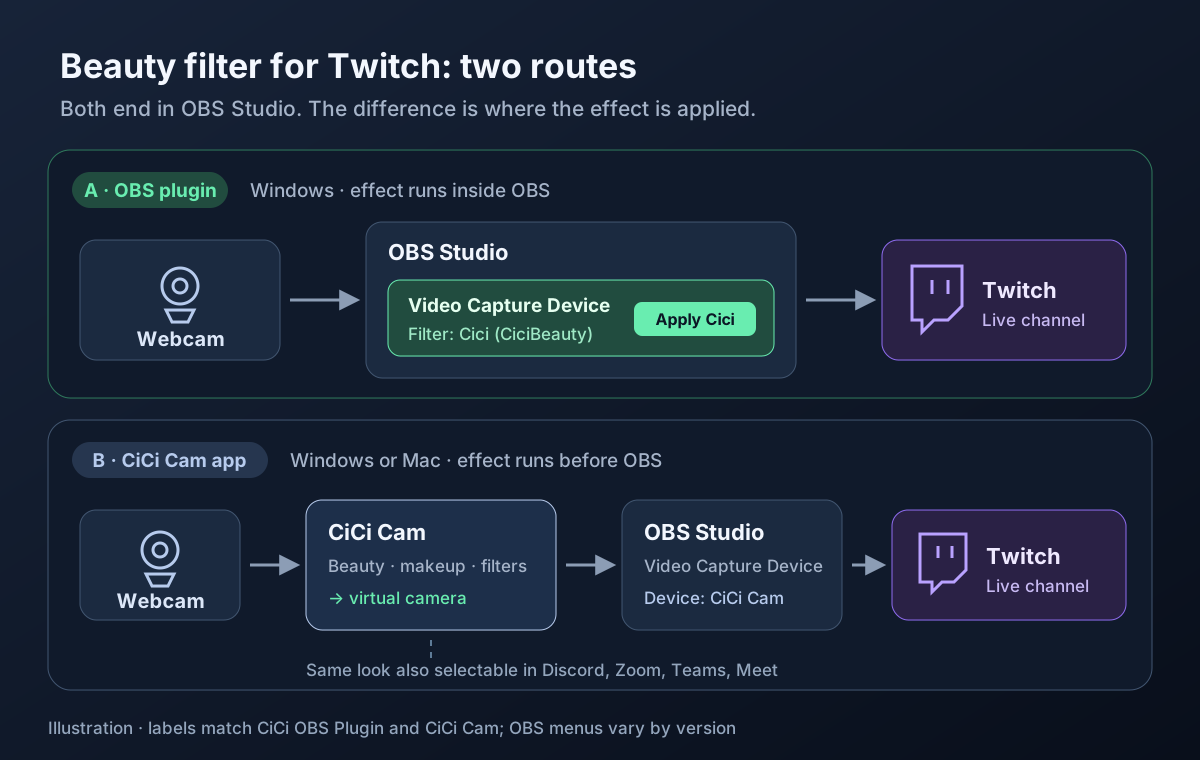
To add a beauty filter to your Twitch stream, apply the effect before OBS sends video to Twitch. On Windows, CiCi OBS Plugin processes a camera source inside OBS. On supported Windows and Mac computers, CiCi Cam processes your webcam and supplies a virtual camera to OBS. Both routes include the beauty effect in your stream.
The short version for most streamers on Windows:
- Install the CiCi OBS Plugin. The installer finds OBS for you.
- Sign in and activate an eligible 7-day trial or a CiCi OBS Plugin Pro subscription. The trial requires a payment method and renews automatically unless canceled before it ends.
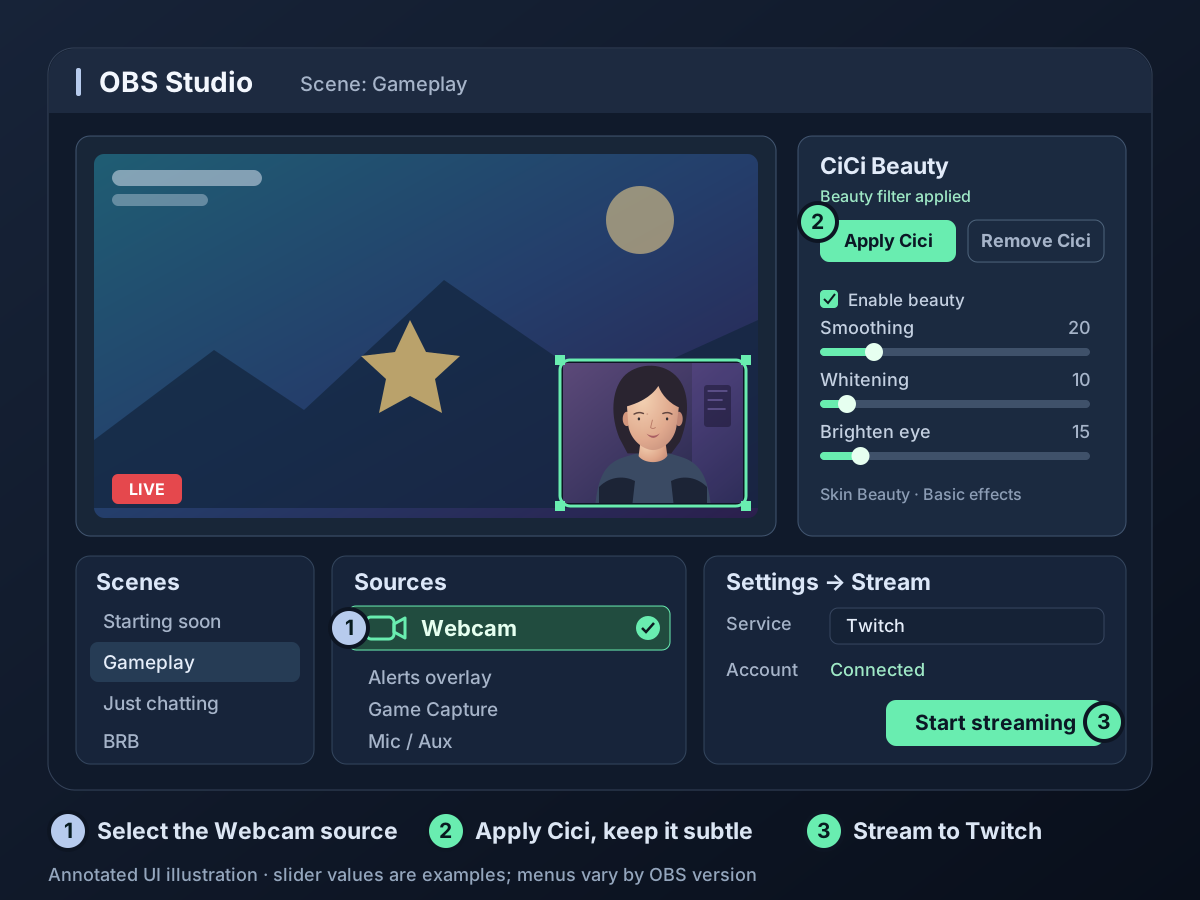
- In OBS, select your webcam source and open CiCi Beauty from the Tools menu.
- Click Apply Cici, keep Smoothing low, and start streaming to Twitch as usual.
For every way to add a beauty or face filter to OBS, not only for Twitch, see OBS beauty filter options. OBS’s official Filters Guide explains how source filters work.
Which route should you use?
| CiCi OBS Plugin | CiCi Cam desktop app | |
|---|---|---|
| Where the effect runs | Inside OBS, as a filter on a source | Before OBS, as a virtual camera |
| Best for | Streamers who go live from OBS | Streamers on a Mac, or who also want the look in Zoom, Teams, Meet, or Discord |
| Works on | OBS video input sources, such as webcams, capture cards, and media sources | Your webcam |
| Platforms | Windows 10/11 x64 | Windows 10/11 x64, macOS 14+ on Apple Silicon |
| Membership | CiCi OBS Plugin Pro, 7-day free trial on the first subscription | Free Starter plan with a daily time limit and a watermark; CiCi Cam Pro removes both |
CiCi OBS Plugin Pro and CiCi Cam Pro are separate memberships. A subscription to one does not unlock the other. The plugin applies to video input sources, not directly to scenes or groups.
If Twitch is your main use and you are on Windows, start with the plugin. If you stream from a Mac, or want the same look in your meetings and calls, use CiCi Cam. For uninterrupted beauty effects without a watermark, use CiCi Cam Pro: the free plan adds a watermark and turns off beauty, makeup, face-shaping, and color-filter effects when its daily allowance runs out. The camera feed continues.
Option A: Add the CiCi OBS Plugin filter (Windows)
1. Install the plugin
Download and run the installer from the CiCi OBS Plugin page. It detects a compatible 64-bit OBS Studio 30.1.1 or later, or installs a supported version if needed. For portable installations and detection issues, see how to install an OBS beauty filter plugin.
2. Sign in and start your trial
When OBS starts with the plugin, sign in with Google or email. Effects need an active CiCi OBS Plugin Pro subscription; your first subscription starts with a 7-day free trial. Checkout asks for a payment method, and the plan renews automatically unless you cancel before the trial ends.
3. Apply it to your facecam
- Open the scene you stream with, such as Gameplay or Just Chatting.
- Select your webcam source — usually a Video Capture Device — in the Sources list.
- Open the CiCi Beauty panel from the Tools menu, or with the plugin button below the preview.
- Click Apply Cici.
A status icon in the Sources list indicates that the beauty effect is applied, and the plugin’s filter appears in the source’s Filters list. When that source is visible in your output, its beauty effect is included in the Twitch stream and local recordings. VODs and clips made from the stream retain the effect too.
4. Connect OBS to Twitch
If OBS is not connected yet, open Settings → Stream, choose Twitch as the service, and click Connect Account (or paste your stream key from the Twitch Creator Dashboard). Nothing about the Twitch connection changes when you add a beauty filter.
Option B: Use CiCi Cam as your OBS camera (Windows or Mac)
- Open CiCi Cam and select your physical webcam as its input.
- Adjust beauty, makeup, filters, and background in CiCi Cam’s preview.
- In OBS, add a Video Capture Device and choose CiCi Cam as the device — not your physical webcam.
- Keep CiCi Cam running while you stream to Twitch from OBS. You do not need to start OBS Virtual Camera to bring CiCi Cam into OBS.
Because CiCi Cam is a camera device, Zoom, Teams, Meet, and Discord can select it too. If you want OBS and a call app to use it at the same time, test that both keep receiving video on your computer first. Step-by-step details are in adding a beauty filter to OBS without Snap Camera and using one webcam in Zoom and OBS at the same time. Mac users should also read allowing the CiCi Cam camera extension.
How do you keep the same facecam in every OBS scene?
Add the webcam once, then reuse it with Add Existing in every other scene. Twitch streamers usually switch between scenes: Starting soon, Gameplay, Just Chatting, BRB. With the plugin, the filter belongs to one source. If you add a new Video Capture Device to each scene, each copy is a separate source without the filter, and two copies of the same webcam can fight over the device.
In every other scene, click + under Sources, choose Video Capture Device, and select Add Existing. Every scene then shows the same filtered camera, and you only tune the look once. Changing its beauty settings affects every scene that references that source; switching scenes does not select a different beauty setup.
With CiCi Cam, this is less critical because the effect is already in the camera feed, but reusing one source is still lighter on your computer.
What beauty settings look natural on Twitch?
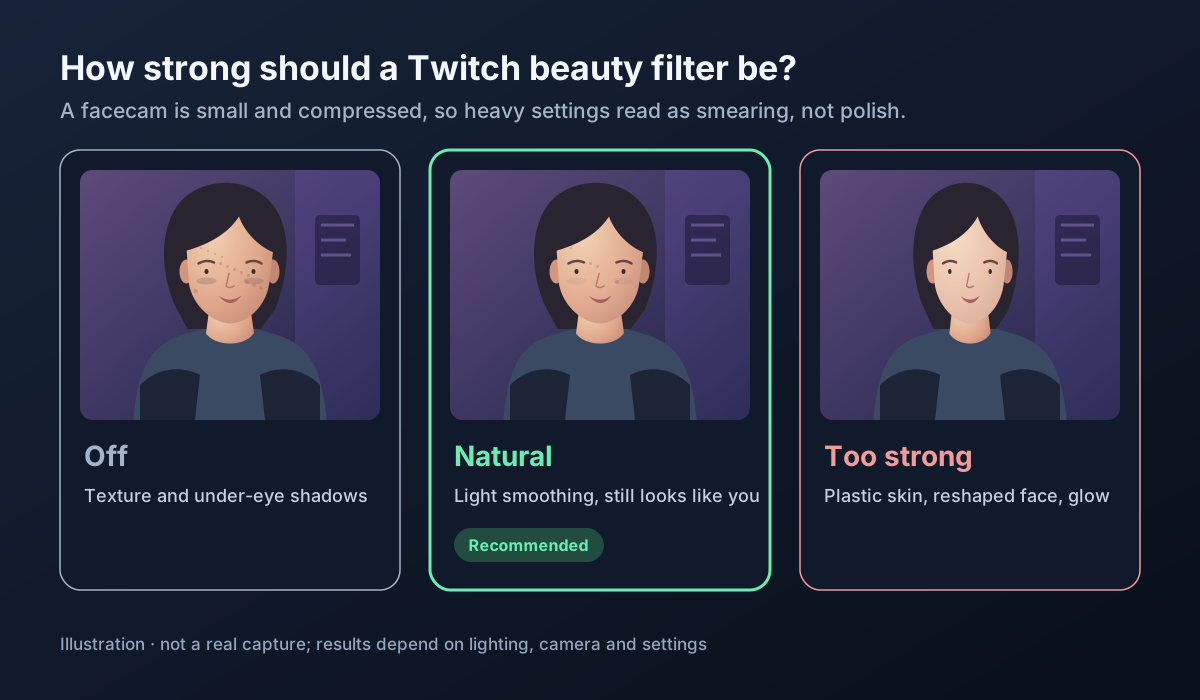
Start with low smoothing and little or no face reshaping, then check the result at the size and playback quality your viewers use. A Twitch facecam is often a small part of a fast-moving gameplay stream. Scaling and compression can reduce visible skin detail, so heavy smoothing may make the face look soft or smeared.
Start here and adjust:
- Smoothing low. Raise it only until uneven texture stops drawing attention, then back off a step.
- Fix tired eyes before whitening. If you look dull, try a little Brighten eye or Dark circle before raising Whitening.
- Little or no face reshaping. Strong slimming is easy to spot when you move your head quickly while gaming.
- Check both facecam sizes. A full-screen Just Chatting camera shows more detail than a corner facecam. Choose a strength that looks natural in both layouts. If both scenes reference the same source, adjustments apply to both.
- Check the result on Twitch, not just the preview. Use a local recording to check framing and motion first. Then review a short Twitch stream at the playback quality your viewers use; a local recording alone does not reproduce Twitch playback.
Lighting still matters more than any filter. One soft light in front of you does more than raising every slider — see webcam lighting for video calls and why beauty filters look fake.
How do you keep the stream smooth while gaming?
Face tracking and beauty effects use your GPU and CPU while your game and the stream encoder are using them too. To keep frames stable:
- Set the webcam source to 1280×720 or 1920×1080 at 30 fps. A facecam rarely needs 60 fps.
- Use a hardware encoder in Settings → Output (NVIDIA NVENC, AMD, or Intel Quick Sync) so encoding does not compete with the game for CPU.
- Leave off effects you are not using, such as body shaping or lens effects.
- Open Docks → Stats and watch for skipped or lagged frames during a test stream.
If the stream still stutters, follow beauty filter lagging or freezing, and match your output settings to Twitch’s broadcasting guidelines.
Optional: green screen facecam
Many Twitch layouts cut the streamer out of the background and place them over gameplay. The CiCi Beauty panel includes green screen keying with AI color pick and no-keying zones, so you can key and beautify the same source in one place. Keying in the plugin needs a physical green screen. Without one, CiCi Cam can remove, blur, or replace your background — see how to change your webcam background.
Troubleshooting
The filter shows in OBS but not in some scenes
Check whether that scene uses a different webcam source, or whether the filtered source is hidden or covered. If it uses a separate copy, replace that copy with the filtered camera through Add Existing, as described above.
The stream looks blurrier than the OBS preview
Compression or scaling is a common cause, but strong smoothing can also remove detail. Compare the same scene with the beauty effect on and off. If both look soft on Twitch, check OBS’s output resolution, source scaling, encoder bitrate, and the Twitch player’s selected quality. If disabling the effect restores detail, lower Smoothing. Improve lighting and follow Twitch’s broadcasting guidelines when adjusting encoding settings.
The camera is black after joining a Discord call
Discord probably took the physical webcam. Close the call or switch Discord to another camera, then deactivate and reactivate the source in OBS. To share one webcam between OBS and a call, see using one webcam in Zoom and OBS at the same time. More fixes are in virtual camera not showing up.
CiCi Beauty is missing from the Tools menu
Quit OBS fully, including from the system tray, and reopen it. If you have more than one OBS installed, run the plugin installer again with the OBS you stream from open, so it is detected first.
Frequently asked questions
Does Twitch have a built-in beauty filter?
No. Twitch broadcasts whatever your streaming software sends. Beauty effects have to be applied in OBS, or in a camera app like CiCi Cam before OBS.
Is it allowed to use a beauty filter on Twitch?
A beauty filter only changes how your camera image looks, much like lighting or color correction. Your stream still has to follow Twitch’s Community Guidelines like any other content.
Will viewers, VODs, and clips see the filter?
Yes. The effect is applied before OBS encodes the stream, so live viewers, VODs, highlights, and clips all show the filtered camera.
Can I add a beauty filter to Twitch on a Mac?
Yes, with the CiCi Cam desktop app on macOS 14 or later with Apple Silicon. Add CiCi Cam to OBS as a Video Capture Device. The OBS plugin is Windows-only for now.
Does it work with Streamlabs Desktop?
The CiCi OBS Plugin is built for OBS Studio. With Streamlabs Desktop or other streaming apps, use CiCi Cam and select it as your camera. Follow the Streamlabs beauty filter setup.
Can I turn the filter off during a stream?
Yes. With the plugin, uncheck Enable beauty (and Enable makeup or other effect switches you use) in the CiCi Beauty panel, or disable the plugin’s filter on the source. With CiCi Cam, switch Effects off in its window. The OBS output updates immediately; viewers see the change after the stream’s normal playback delay. See Twitch’s explanation of stream delay.
Summary
Beauty effects applied before OBS sends video to Twitch are included in your stream. On Windows, install the CiCi OBS Plugin, sign in with an active plugin trial or subscription, select your webcam source, and click Apply Cici. On a supported Mac, or if you want the same look in your calls too, use CiCi Cam as your OBS camera. Reuse one camera source across scenes, keep smoothing low, and check both a small facecam and a close-up at your viewers’ playback quality.