SOOP Studio · FreecShot · PRISM · OBS

SOOP Beauty Filter & Virtual Camera for AfreecaTV Streamers

SOOP is the livestream platform formerly known as AfreecaTV. Build your look in CiCi Cam first, then use its virtual camera in your broadcast software. In the Korean desktop workflow, SOOP's own studio route appears as 스튜디오 / FreecShot(프릭샷) in official help, while PRISM Live Studio(프리즘 라이브 스튜디오) is a third-party Korean-friendly broadcaster that supports SOOP. OBS Studio and XSplit remain useful external-encoder options. CiCi Cam handles natural skin, makeup, facial light, shape, and color upstream while the broadcaster handles scenes, audio, and the SOOP stream.

PRISM Live Studio selecting the CiCi Cam virtual camera with CPU usage visible

How do you use CiCi Cam with SOOP?

The signal path is physical webcam → CiCi Cam → broadcast software → SOOP. First create a modest beauty preset in CiCi Cam. Next, choose CiCi Cam as the camera source in SOOP's Windows studio tool, PRISM Live Studio, OBS Studio, or XSplit. Use the broadcaster for composition, audio, title, category, and stream output; use SOOP's own dashboard for the account-specific broadcast route and stream details.

Last reviewed:

Why the default setup falls short

SOOP supports more than one broadcast style

SOOP's own getting-started guide covers PC-screen, webcam, video-file, and broadcast sources. A beauty filter needs to sit at the camera-input stage so the same enhanced feed can be placed in whichever scene or source setup you use.

The desktop workflow differs by operating system

Windows streamers can choose SOOP's PC studio tools, PRISM Live Studio, or an external encoder such as OBS Studio. For macOS, use a broadcaster that can send the external-device stream details shown by your SOOP account; OBS Studio and PRISM Live Studio are the practical options to explain because both can add a normal camera device.

The raw webcam and the virtual camera have different jobs

Your physical webcam should be selected in CiCi Cam. The broadcasting app should select CiCi Cam, not the physical webcam. Reversing that order sends the unfiltered picture or can leave a camera busy.

How the setup works

  1. 1

    Confirm your SOOP broadcast route

    Sign in to the SOOP service and open the broadcast or external-device settings available to your account. Windows users can use the platform's PC studio path, PRISM Live Studio, or another external encoder; macOS users should obtain the current external-device stream details from this page before configuring OBS or PRISM.

  2. 2

    Create a natural CiCi Cam stream preset

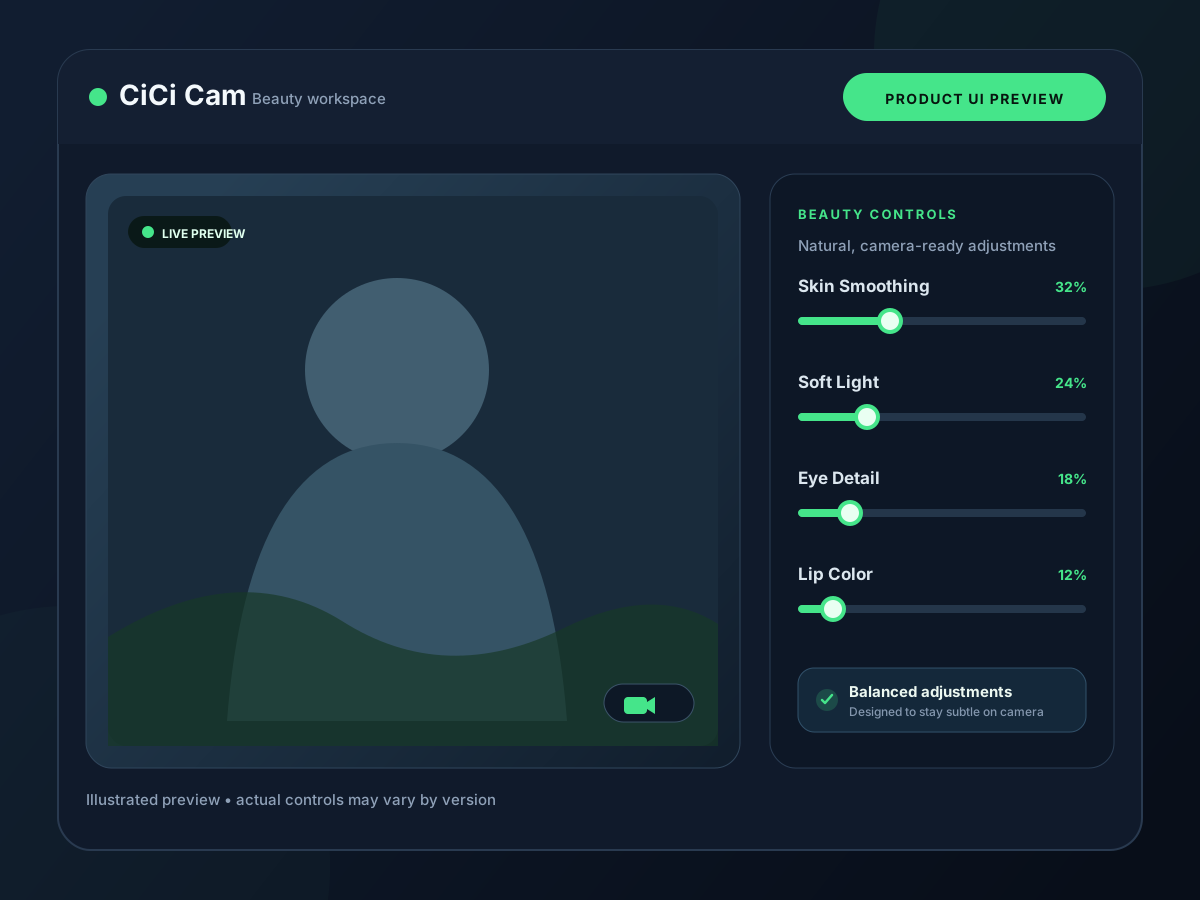
    Open CiCi Cam, choose the physical webcam, and begin with light smoothing and facial soft light. Add makeup, face refinement, and color only after the preview looks natural. Save a preset for your normal SOOP lighting setup.

  3. 3

    Choose CiCi Cam as the camera source

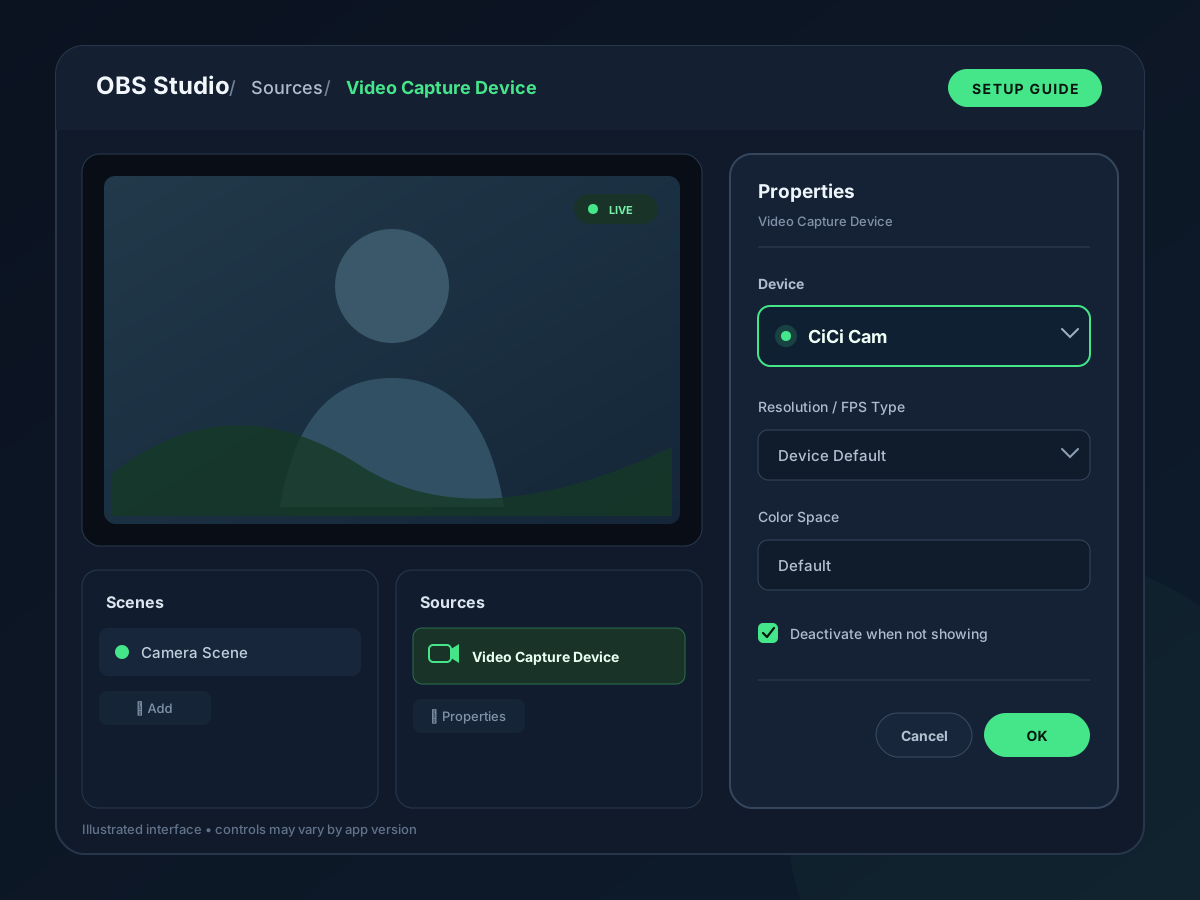
    In SOOP's PC studio tool, PRISM Live Studio, OBS Studio, or XSplit, add or edit the camera source and select “CiCi Cam” from the device list. In OBS and PRISM this is a Video Capture Device source. Do not capture the CiCi Cam app window.

  4. 4

    Check the final scene before you start

    Set the title and category in SOOP, confirm your scene crop, audio, and live preview, then start the stream. Test the complete setup before a real broadcast—CiCi Cam, browser sources, capture, and encoding share the same computer resources.

See it in your workflow

Setup visuals and product previews

PRISM Live Studio selecting CiCi Cam as a virtual camera with CPU usage visible
PRISM Live Studio selecting CiCi Cam as a Video Capture Device. The CPU number shown is an example and varies by computer and scene.
OBS video capture device settings with CiCi Cam selected
Select CiCi Cam as a normal camera source in the broadcaster.
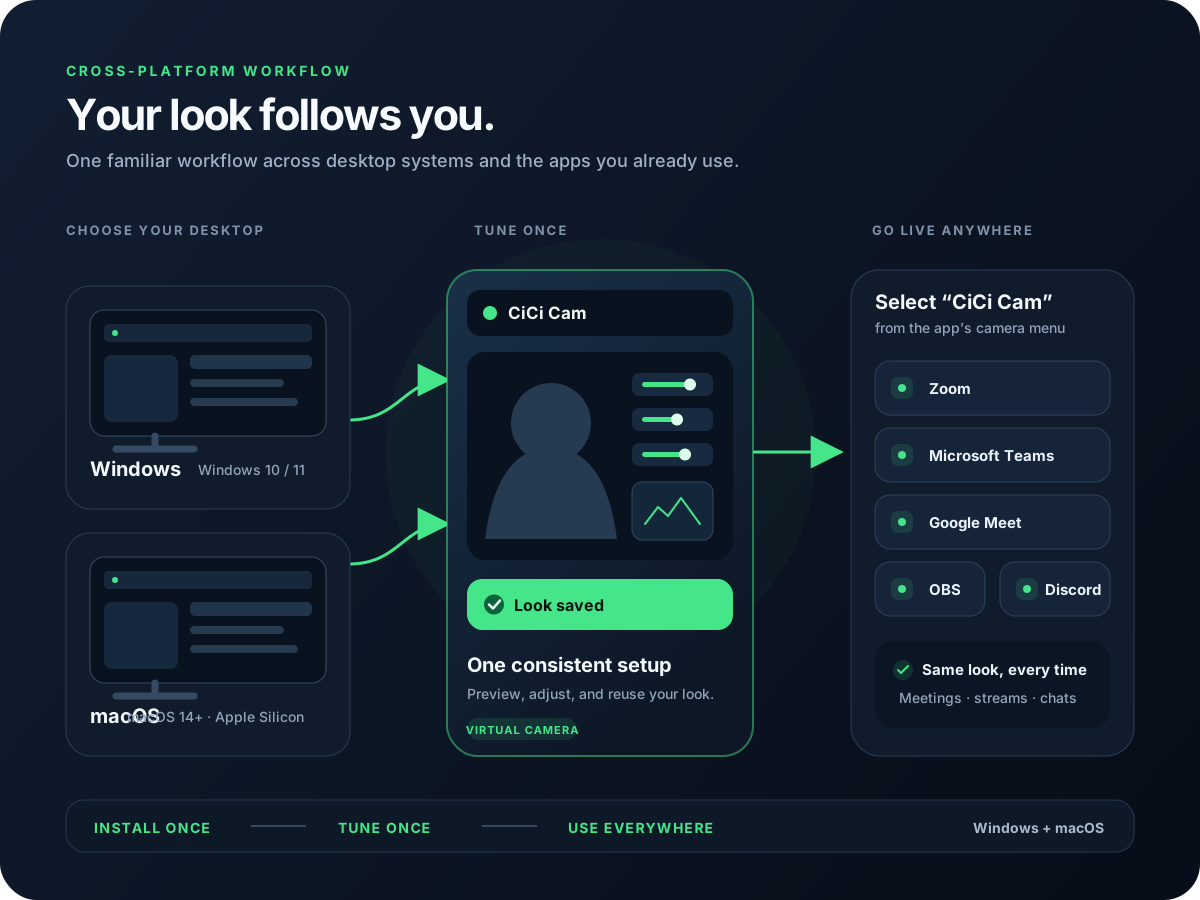
Diagram of CiCi Cam sending a virtual camera feed to desktop apps
The virtual camera keeps your look upstream from scenes and stream output.

What SOOP gives a livestream workflow

Several ways to start a broadcast

SOOP's starter guide presents PC-screen capture, webcam broadcasting, video-file broadcasting, and broadcast/TV sources. Use the right source mix for a talk show, game stream, music session, or event.

Title and category before you go live

The platform's broadcast setup includes the stream title and category. These should match the scene and camera framing you have prepared, especially when switching between webcam-led and screen-led content.

Native PC studio or external encoder

SOOP documents its PC studio workflow and an external-device path that names OBS and XSplit. PRISM Live Studio is not SOOP-owned, but its Korean help and desktop product pages explicitly support SOOP. These encoders are useful when you need detailed scenes, browser overlays, game capture, or a reusable camera pipeline.

A virtual camera keeps effects portable

CiCi Cam is not a SOOP plugin. It outputs a system camera, so the same saved look can be selected in a SOOP workflow, OBS, recording tools, and compatible video apps without recreating the beauty settings.

SOOP broadcast software: where CiCi Cam fits

The key is not which encoder you choose—it is keeping CiCi Cam upstream as the only app that opens the physical webcam, then selecting its virtual camera in the broadcaster.

SOOP broadcast software: where CiCi Cam fits
Operating systemBroadcast softwareConnect CiCi CamBest fit
WindowsSOOP Studio / FreecShot(프릭샷)Add or edit the webcam source, then choose CiCi Cam from the camera-device list.SOOP's official PC route for webcam or PC-screen broadcasts.
Windows / macOSPRISM Live Studio(프리즘 라이브 스튜디오)Add a Video Capture Device source and choose CiCi Cam from the Device menu, then connect SOOP or Custom RTMP.A Korean-friendly third-party broadcaster with SOOP support, multistreaming, widgets, scenes, and built-in PRISM Lens options.
WindowsOBS StudioAdd Sources → Video Capture Device and select CiCi Cam. Configure the SOOP destination with the current details in your account.Scenes, game capture, browser overlays, recording, and detailed audio routing.
WindowsXSplit BroadcasterAdd CiCi Cam as the camera input, then use the account's external-device broadcast settings for the SOOP destination.Existing XSplit workflows; SOOP's external-device documentation names XSplit alongside OBS.
macOSOBS StudioAdd CiCi Cam as a Video Capture Device, then enter the SOOP external-device stream details in the destination settings.The clear Mac route for scenes, camera composition, and an external-device stream.

SOOP service, region, account eligibility, interface labels, and stream endpoints can change. Copy stream details only from the live dashboard available to your account, and never share a stream key.

Recommended CiCi Cam setup for a SOOP stream

Use one primary beauty layer, let the broadcaster do production work, and judge the result in the final live preview—not only in the CiCi Cam window.

Keep beauty upstream and restrained

Start with light smoothing and facial light in CiCi Cam. If your broadcaster has its own appearance or color controls, leave them disabled at first so you can assess one clean camera feed before adding any separate scene effect.

Use a named SOOP preset

Save a preset for the lighting and camera distance you use most often. Make separate daytime, evening, and product-demo versions instead of changing a single preset during a live broadcast.

Match the source to the stream plan

Begin at a stable camera mode such as 1280 × 720 at 30 fps if you are troubleshooting. Increase the resolution or frame rate only after the camera, scenes, browser sources, game, and encoder remain smooth together.

Protect the broadcast connection

Retrieve the stream server and key from SOOP's current broadcast page every time you need to reconfigure. Keep the key out of screenshots, scene notes, and messages; rotate it through SOOP if you think it was exposed.

SOOP and virtual-camera troubleshooting

Work left to right: physical webcam, CiCi Cam preview, CiCi Cam virtual camera, broadcaster preview, then the SOOP live preview.

CiCi Cam is missing from the camera list

Quit the broadcasting software, open CiCi Cam and confirm its preview is running, then reopen the broadcaster. Check operating-system camera permissions. On a supported Mac, follow the macOS Camera Extension approval prompt as well.

The broadcaster shows the raw webcam

Open the camera-source properties and replace the physical webcam with CiCi Cam. The physical webcam should be selected in CiCi Cam only; the broadcaster should receive the processed virtual camera.

The picture is black or frozen

Close other apps that may be holding the physical webcam. Confirm that CiCi Cam itself has a live preview before changing source settings in OBS, XSplit, or the SOOP PC studio tool.

The stream starts but looks too soft or lags

Reduce duplicate beauty and color effects, test at 720p and 30 fps, then record a representative scene before going live. A separate beauty app still shares CPU and GPU resources with game capture, browser sources, and encoding.

More CiCi Cam streaming guides

Review notes and primary sources

SOOP's current public starter guide was checked for broadcast styles, broadcast-information setup, and the PC studio workflow. SOOP's developer documentation was checked for the external-device workflow naming OBS and XSplit. PRISM Live Studio's Korean documentation was checked for SOOP support, desktop platforms, and Video Capture Device sources. OBS source behavior was checked against the OBS Knowledge Base. SOOP tools and account access vary by service and region.

Frequently asked questions

SOOP is the current name used by the livestream platform formerly known as AfreecaTV. Account availability, broadcaster tools, and stream settings can vary by SOOP service and region, so use the broadcast dashboard shown for your own account as the source of truth.

Try CiCi Cam free

Install CiCi Cam, save a natural SOOP preset, and choose CiCi Cam as the camera source in your broadcaster before going live.

Download CiCi Cam Free